


There's a moment most people hit when setting up a user test. You've opened your user testing tool, you've got the URL, you're ready to go. And then: the blank page.
What do you ask? Where do you start? How do you write a scenario that doesn't lead the tester by the nose?
It happens to experienced UX researchers too. Stefan Rössler, Userbrain's head of product, has run his first user test nearly 20 years ago. He still gets it.
“Every time I'm in the process of setting up a new test, it's like: ah, it's this big project.”
That’s exactly the problem the Auto-Create Tasks feature is built to solve. Describe your product in your own words, and you get a properly structured, unbiased user test in seconds. No blank page. No second-guessing the wording. The AI handles all of that.

And if you want to go further: sharpen the focus, target a specific research goal, or make sure the scenario matches what your team actually needs to learn. A little more context in your prompt goes a long way.
Here’s the five-step process that gets you from description to a test your whole team will find useful.
Watch the full walkthrough
This post is based on a live Userbrain webinar where Stefan Rössler, head of product and co-founder, walks through the five steps in real time, including live demos on userbrain.com and an e-commerce site. If you’d rather watch than read, it’s all in there.
Embedded content: https://www.youtube.com/embed/hJqyJ9G1kHY?si=EUt2Yg2wDlTVcqN4
Step 1: Describe the product
This is the starting point, and it doesn't need to be long. One sentence is enough.
Something like:
“A simple tool for running quick user tests to get insights from real people.”
That's it. Paste in the URL, add the description, and hit generate.
What comes out is already a proper user test. There's a homepage tour (a first-impression task recommended by Steve Krug), a realistic scenario, follow-up rating questions, and task-based flows that follow usability testing best practices. The AI handles the structure. It handles the question phrasing. It makes sure nothing is leading or biased.
Is it a great test? Yes. Is it specific to what your team wants to learn? Not yet.
That's what the next steps are for.
Step 2: Add a research goal
Most user tests exist because someone needs to answer a specific question. What is it?
It doesn't have to be elaborate.
“We want to find out if potential customers can understand our pricing”
…is a complete research goal. Drop it into the description alongside your product summary and regenerate.
The AI picks it up immediately. Instead of a general exploration task, you'll get a scenario built around pricing discovery. It'll suggest a concrete budget (like “$200 per month”) to give testers something tangible to work with, rather than just asking them to browse the pricing page vaguely.
Follow-up questions start probing whether the pricing structure made sense, whether it matched their needs.
One sentence, and the whole test shifts focus.
Step 3: Describe a typical use case
The AI will always create a scenario. But it won't always create your scenario.
If you know that your typical first-time visitor is, say, a product manager trying to gather feedback from a group of five people before a feature launch, that's worth putting in the prompt.
A specific, realistic use case does two things at once:
- It gives testers enough context to behave naturally, and
- It gives your stakeholders a scenario they'll actually recognise
That second part matters more than people think. If a designer or developer looks at a test and says “that's not how our users actually behave,” the results become easier to dismiss.
A use case grounded in what you know about your users closes that door.
Step 4: Add anything else you'd like to know
This is the most informal step, and deliberately so.
Just write what's on your mind:
“I'd love to know if people have used other platforms before and how they think we compare.”
or
“Our stakeholders really want a net promoter score question.”
or
“We're curious whether people can find sizing, materials, and returns info without help.”
You don't need to frame it as a usability question. You don't need to worry about whether it's phrased neutrally. The AI takes what you give it and formats it properly. Multiple-choice, rating scale, written response: it picks the right format for the question you're describing and makes sure it doesn't lead the tester.
By this point, you've written four short things in plain English. The test you get back is targeted, structured, and ready to run.
Step 5: Take the test yourself before you order testers
Before you send a test to real people, run it yourself.
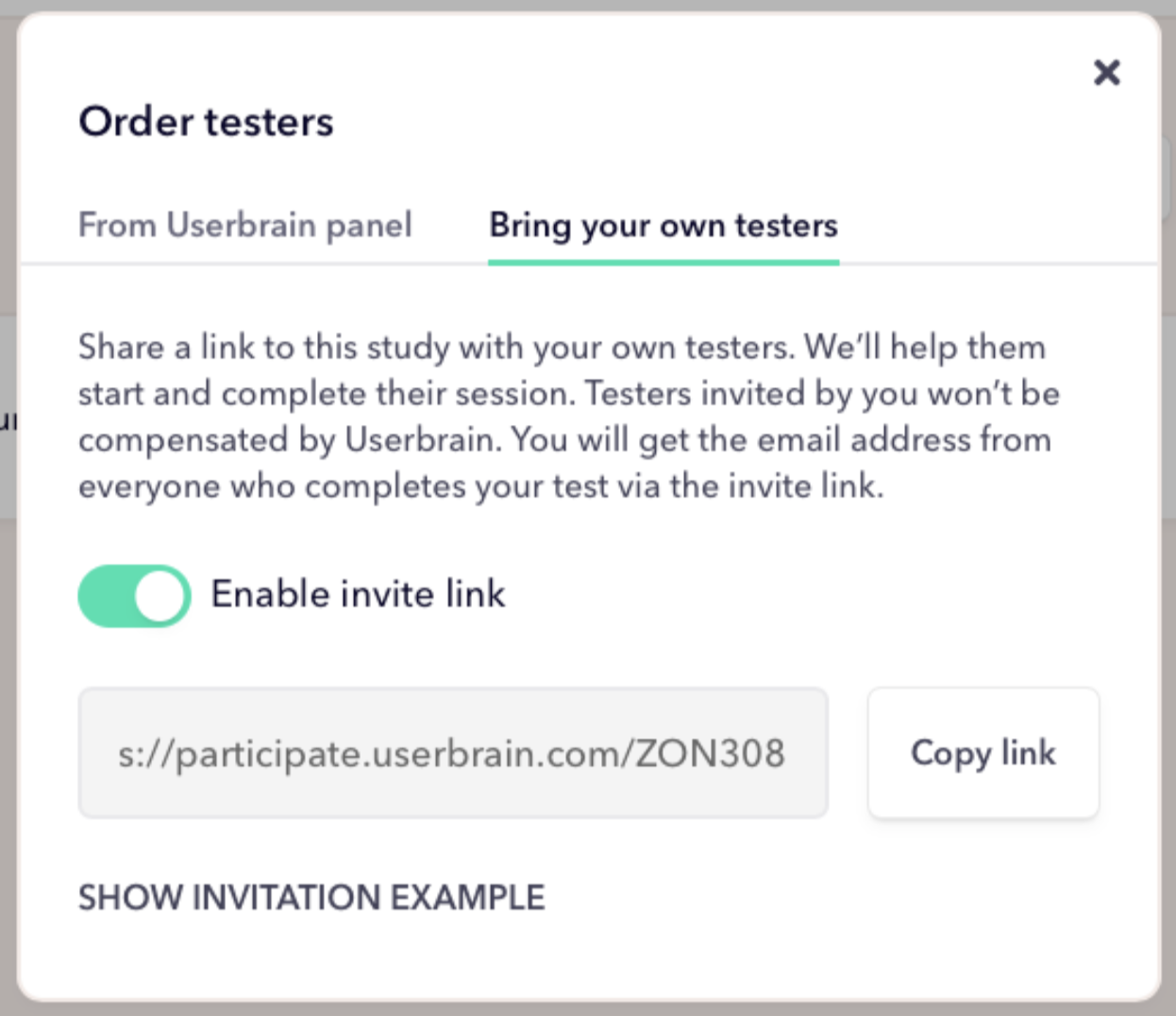
Go to “Invite your own testers,” enable the invite link, copy it, open it in a new tab, and go through it as if you were a real participant.
This is the step that catches things:
- A task that seemed clear when you wrote it turns out to be ambiguous in context.
- A scenario that looked good on paper feels slightly off when you're actually doing it.
You'll notice these things in five minutes that you'd otherwise only find out after 10 paid test sessions.
Once you've run it yourself, make any changes, and you're done.
Example AI prompts to copy and adapt
The five steps above are easier to internalise with something concrete in front of you. Here are three ready-to-use prompts for common testing scenarios.
Paste them into Auto-Create Tasks in Userbrain or into your favourite LLM. Swap in your own details, and regenerate.
SaaS product: onboarding and pricing
[Product description] A project management tool for small teams that helps track tasks, deadlines, and workload in one place.
[Research goal] We want to find out if new users can understand the pricing tiers and choose the right plan for their team size.
[Typical use case] A team lead at a 10-person startup who's been using spreadsheets and is looking for something more structured.
[Anything else] I'd also love to know if people can find the free trial without being prompted, and whether the onboarding flow feels overwhelming.
E-commerce: product discovery and checkout
[Product description] An online store for eco-friendly apparel and shoes.
[Research goal] We want to understand whether first-time visitors can find a shoe that fits their style and needs.
[Typical use case] Someone looking for comfy, stylish sneakers for everyday wear. They care about sustainability but don’t know the brand.
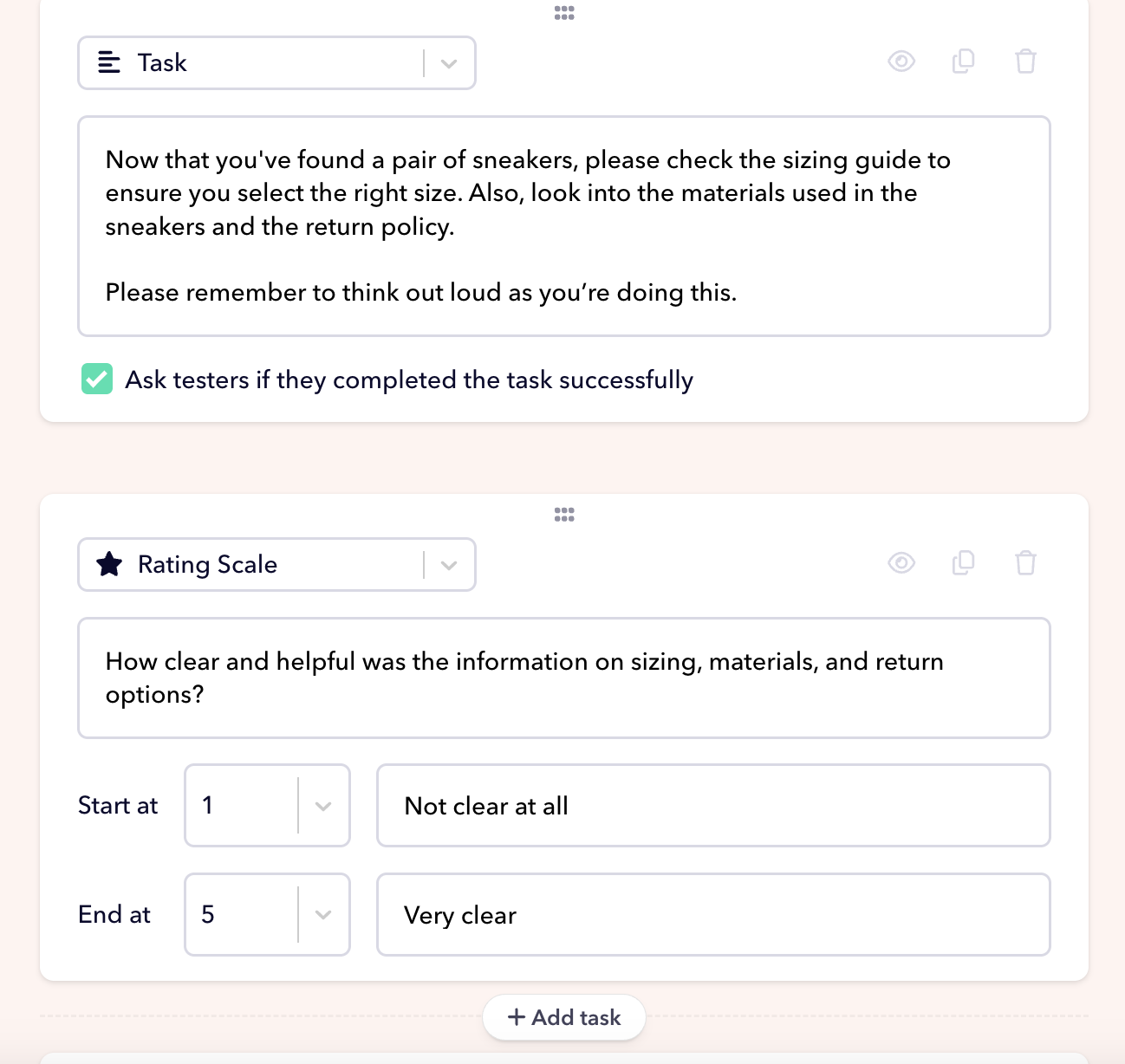
[Anything else] We're also curious whether sizing, materials, and return options are easy to understand.
Here's what your prompt would look like
Describe your research goal ➝ “Can first-time visitors find a shoe that fits their style and needs?”
Describe a typical use case ➝ “Imagine you're looking for comfy, stylish sneakers for everyday wear. You care about sustainability but don’t know the brand.”
Add anything else you'd like to know ➝ “We want to know if sizing, materials, and return options are easy to understand.”
B2B website: value proposition and lead gen
[Product description] A platform that helps HR teams automate employee onboarding paperwork and compliance tracking.
[Research goal] We want to find out if HR managers can quickly understand what the product does and what's included in each plan.
[Typical use case] An HR manager at a 50-person company who's frustrated with chasing new hires for forms and has 10 minutes to evaluate a new tool.
[Anything else] We'd like to know if the "Book a demo" CTA feels like the right next step, or if people want to explore more before committing to a call.
These aren't scripts. They're starting points. Run them through Auto-Create, take the test yourself, and adjust anything that doesn't feel right for your product or your users.
Summing up
The thing worth understanding about Auto-Create Tasks is who it's actually for.
Yes, it helps experienced UX researchers get past the blank page faster. But the bigger value is what it does for the people who aren't UX researchers: the designers, developers, and product managers who need to run tests but don't have the training, the templates, or the time to build them from scratch.
When those people can run their own tests without needing to be coached through every step, two things happen. The volume of testing inside a company goes up. And the buy-in for findings goes up too, because the people who built the thing are also the people who watched someone struggle with it.
A test you wrote yourself is harder to argue with.
Userbrain's Auto-Create Tasks feature turns a plain-English description into a structured, unbiased user test in seconds. Pair it with AI Insights to get a summary of findings the moment your testers are done. Start your free trial →